
· 6 min read D&D 5e PF2e Draw Steel
How to Make Printable D&D Item Cards (Free)
Make free printable D&D item cards from your campaign's gear. Build a deck in ScryRPG, choose a layout, and print or export a PDF, with optional QR links.
Make free printable D&D item cards from your campaign's gear. Build a deck in ScryRPG, choose a layout, and print or export a PDF, with optional QR links.
The party finds a sword that hums with cold light. You describe the blade, someone writes down its name, and next week nobody can find the note with its powers. A card gives that sword a place on the table. Pass it to the fighter, and the description travels with the item.
Making the card should take less work than inventing the sword. ScryRPG lays out printable item cards from the gear in your campaign or the marketplace, including artwork and rules where the source has them. Card creation, printing, PDF export, and image downloads are free on every plan. You supply the paper and ink.
Pick something the party will use next session. A healing potion is a good first print: a short rule, a familiar item, and a reason to keep the card beside the dice.
Check the source before you print. If you changed the sword’s powers for your campaign, use the item containing those changes. The card can only show the information it was given.
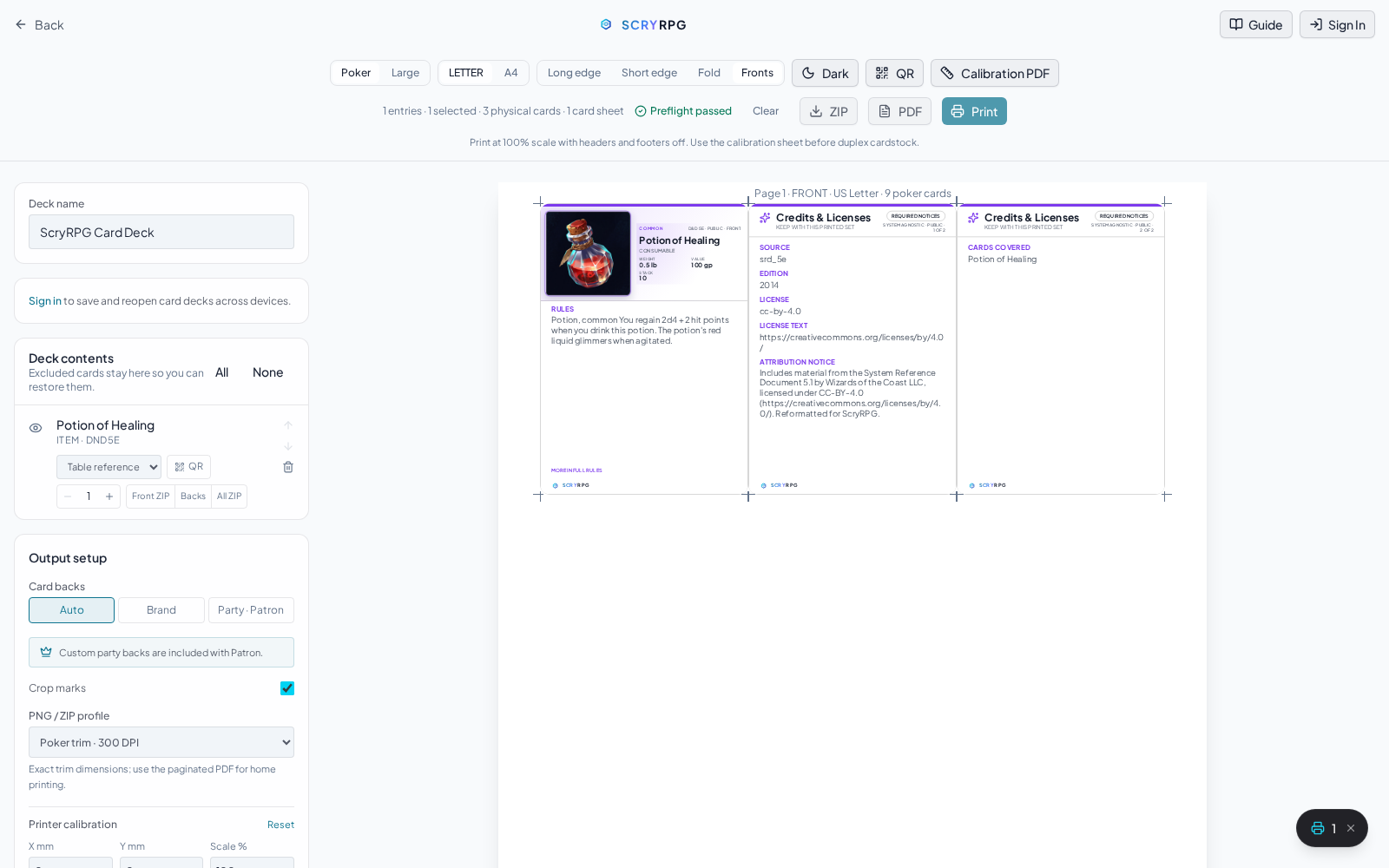
One public item, ready for a one-sided proof while signed out. Open the full-size screenshot to see the controls.
Once the first card looks right, add the rest while you prepare. A shop or loot page’s Print full set action brings its item contents into Card Studio. The shop or loot container itself does not become a physical card. For gear the party carries, use Print Inventory from a supported inventory view.
If there are cards in your workspace, choose whether to add the new set or replace the current deck. In Deck contents, exclude anything you do not need and adjust copies before printing. A shop with twelve identical potions probably needs one display card; a party receiving three potions might want three cards it can divide among players.
Keep unrevealed treasure on your side of the screen. Before handing a card over, read its title, rules, and artwork for information the players have not learned. If the sword is still unidentified, its full description may spoil the discovery.
Printing is free, including your own supported custom items. Signing in also lets you save reusable decks; the number you can save depends on your plan. A custom party-back image is a Patron feature, while the standard ScryRPG backs are available on every plan.
Poker cards measure 2.5 by 3.5 inches. The Large reference size is 4 by 5 inches, useful when a description needs more room. Use 100% or Actual size in the print dialog and turn browser headers and footers off. A “fit to page” setting can change the card dimensions.
Print one sheet on inexpensive paper first. Check that the text is comfortable to read and measure a card before cutting the whole sheet. Light styling uses less background ink. For a sturdier card, sleeve the paper with a spare playing card behind it, or use cardstock within your printer’s supported thickness and weight.
For double-sided cards, choose Long edge or Short edge and use the matching flip setting in your printer dialog. Download the Calibration PDF, follow its measurement instructions, and check the alignment with the printer and paper you intend to use. Recheck on your final stock before printing the batch; a thicker sheet can feed differently.
Keep any Credits & Licenses cards with the deck. They carry source notices that would otherwise crowd the game cards. The Card Studio guide covers calibration, image downloads, ZIP packages, and the remaining output controls.
A printed card stays as it was when you made it. An optional QR link can take someone back to the living entry for the full description.
Saved decks also keep the item details captured when you added them. After changing an item’s rules, re-add the updated item to your deck, then check the preview and copy count before printing a fresh card.
QR links keep the destination’s access rules. A public item can open publicly; a protected campaign entry requires the viewer to sign in with permission to see it. Some snapshots have no suitable destination and print without a QR. If Card Studio cannot verify a selected link, sign in or retry, or turn QR off for that entry before printing.
Scan your proof with the phone you expect to use at the table. Ink, paper, and lighting affect the result, and a code on a preview is no promise about a home printer. For a convention handout, test the destination while signed out too.
A potion card can sit beside a character sheet until the player drinks it, then move to a used pile. A merchant can lay out a few cards as the stock on the counter. At the end of a dungeon, hand over the cards for the treasure the party takes and let the players decide who carries each one.
You can prepare these item cards for D&D 5e, Pathfinder 2e, or Draw Steel. If combat references are what you need, the monster and spell card guide covers those decks.
Start with the sword the fighter keeps asking about. Check its rules, print one card, and put it next to their dice before the session starts.
Give next session’s gear a place on the table. Open Card Studio when your deck is ready.

Six fair ways to divide D&D treasure, from need before greed to a self-balancing loot auction, each tested on the same hoard so you can pick one tonight.
Shopping episodes drag because they make four players wait while one buys. The fix is not to cut shopping. It is to move it off the clock, between sessions.
Eight D&D 5e loot tables for bandits, tombs, shipwrecks, and dragon hoards, with gold, magic items, and advice on making treasure matter to your players.