Printable RPG Cards: Card Studio Guide
Learn how to build, save, print, and export ScryRPG card decks for items, creatures, NPCs, spells, abilities, encounters, shops, loot, and inventory.
Last updated: July 21, 2026
Overview
ScryRPG turns campaign content into table-ready cards. Start with one item, creature, lore NPC, spell, ability, or encounter, or send an authorized encounter, shop, loot set, or inventory into Card Studio together. From there you can print Letter or A4 sheets, create a PDF, or download PNG and ZIP packages.
The card you preview uses the same layout that moves into Card Studio. Table Reference keeps the strongest at-table facts on one information face and tells you when more is available online. Full Rules preserves the complete record and adds continuation faces when it needs more room. Layouts keep D&D 5e, Pathfinder 2e, and Draw Steel information in familiar system-specific groups; Daggerheart and other systems use a clear generic layout.
No design work required
Cards are generated from content in ScryRPG. The studio lays out artwork, statistics, rules, optional QR codes, and any Credits & Licenses companions your set needs. You choose the cards and output settings.
Prove your physical setup
The dimensions, calibration controls, and QR settings described here are engineering targets. They are not certification for a particular printer, phone, paper, finish, or card vendor. Print one inexpensive proof at 100% or Actual size with browser headers and footers disabled, measure it, and scan every QR before committing to cardstock or a production order.
What you can make
- Exact browser print sheets on Letter or A4 paper
- A paginated, client-generated PDF with the same geometry
- Exact-trim or vendor-profile PNG files
- A ZIP package containing unique faces, checksums, quantities, source metadata, and attribution notices
- A private saved deck definition you can reopen on another device after signing in (1 on Free, 10 on Player, unlimited on GM and Patron)
The complete card studio and branded output are available on every plan. Plans differ only in how many reusable deck workspaces you can save and whether you can use a custom party back.
Quick start: print your first deck
- Open an item, creature, spell or ability, encounter, lore NPC, shop, loot set, collection, or inventory that you are allowed to view.
- Choose View card when you want to inspect one fixed card first, or choose Add to Deck, Print full set, or Print Inventory to send content to Card Studio.
- If Card Studio contains cards, choose Replace Deck or Add to Deck. Nothing is merged or replaced without your choice.
- In Deck contents, include only the entries you want, set copies, arrange their order, and choose Table Reference or Full Rules for each entry.
- Decide whether each first face should include a QR link. A QR points back to the live ScryRPG record but never grants someone access they do not have.
- In Output setup, choose Poker or Large cards, Letter or A4 paper, light or dark styling, a one-sided or duplex format, crop marks, and a card-back mode.
- Read Preflight. Resolve red blockers and review any warnings before output.
- For physical cards, print the Calibration PDF on inexpensive paper at 100% / Actual size, measure it, and test the duplex direction and QR codes. Then choose Print, PDF, or ZIP for the finished set, or use a card’s download controls when you need individual PNG faces.
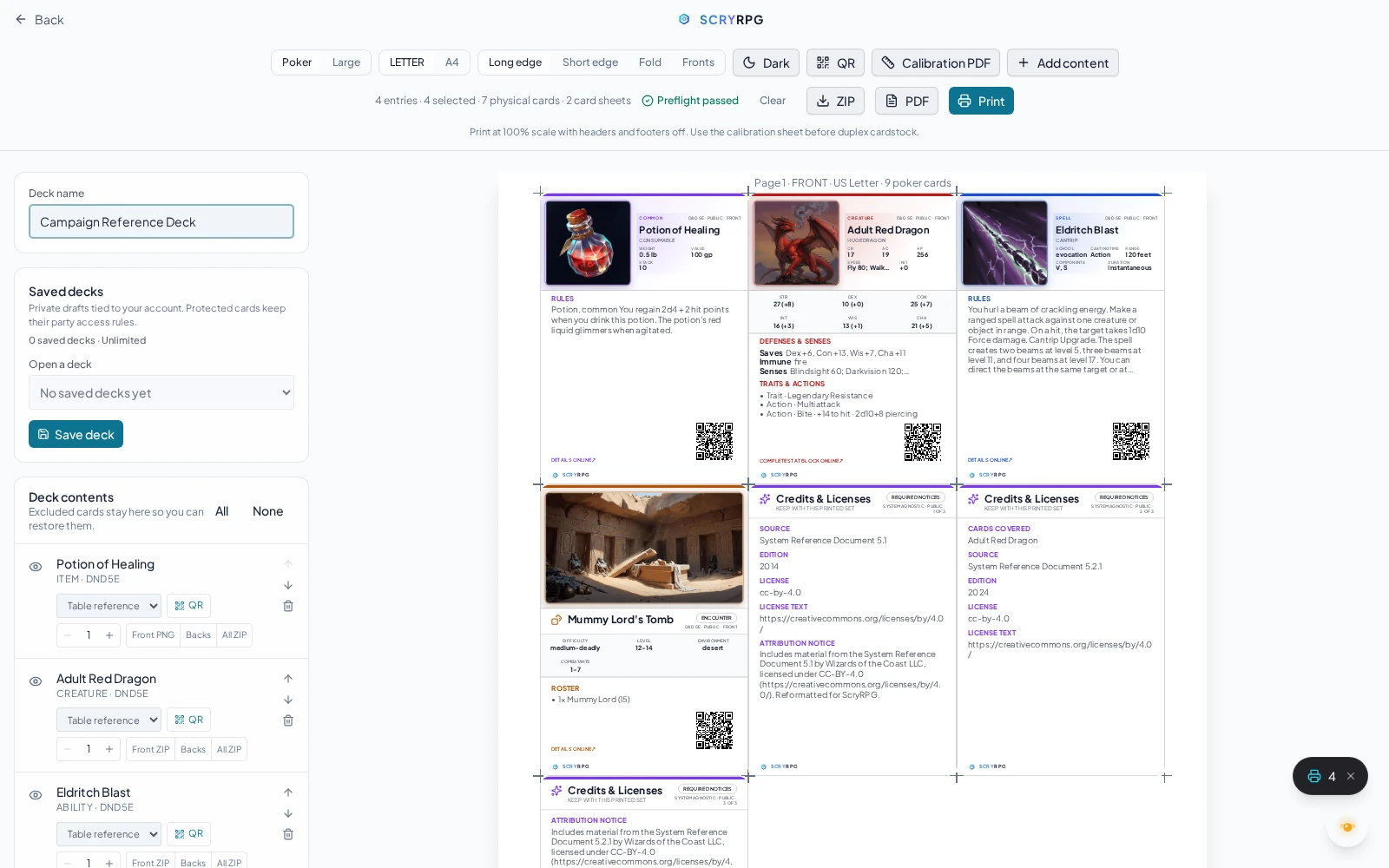
Card Studio keeps deck contents, output setup, preflight, and the real sheet preview in one workspace.
Choose the shortest path for the job
| What you want to do | Where to start |
|---|---|
| Print one item, creature, spell, ability, encounter, or NPC | Open its detail page, choose View card, then Add to Deck |
| Prepare a complete encounter | Choose Print full set on the encounter to add its overview, authorized creatures, and attached loot |
| Hand players a shop or treasure selection | Choose Print full set on the shop or loot source to add its authorized item cards |
| Print what the party carries | Use Print Inventory from the supported character or party inventory view |
| Give players an NPC without GM mechanics | Add the NPC Handout only; keep the separate Mechanical reference out of their set |
| Keep every word of a long rule or stat block | Add the card, then choose Full Rules in Card Studio |
What becomes a card
| Source | Physical result |
|---|---|
| Marketplace item or an item you are authorized to view | One item card using the published details or the authorized inventory copy you selected |
| Creature | A compact one-face creature reference with core statistics and stored action/trait names, or the complete structured stat block in Full Rules |
| Spell or hero ability | A spell or ability reference with casting/action details and rules, with Full Rules available for the complete record |
| Encounter showcase | One encounter overview card |
| Print full set on an encounter detail page | The encounter overview, each unique authorized creature card in its roster, and authorized item cards from an explicitly attached loot table |
| Lore NPC | A player-facing handout with portrait, identity, and revealed lore, plus a separate optional mechanical reference when an authorized linked/inline stat source is usable. They are independent cards, never the front and back of one card |
| Print full set on a shop source | Every authorized merchandise item in that template or realized deployment; deployed-shop currency/till rows are omitted, and the shop remains a digital summary rather than a physical card |
| Print full set on a loot source | Every authorized item in that template or realized deployment; the loot container remains a digital summary rather than a physical card |
| Collection or character inventory | The authorized item cards inside it; the container itself does not become a physical card |
| GM/manager party-inventory Print full set | Authorized item snapshots across character containers and the shared stash |
Shop and loot showcase pages remain responsive digital summaries. Item, creature, spell/ability, encounter, and lore-NPC showcases use the same fixed Poker layout as print/export and show the one-face Table Reference layout. Add a card to Card Studio and choose Full Rules when you want the complete continuation set.
Protected or moderated content is never made public merely because a parent encounter, shop, or loot table references it. ScryRPG filters each nested card independently for the current viewer.
How artwork fits
Square item, creature, spell/ability, and lore-NPC art sits in a framed upper-left window beside the card’s most useful summary facts. This gives the portrait or illustration a clear square stage without wasting the space beside it. Encounter scenes remain wide and receive a larger framed 16:9 window. New lore-NPC generation produces square portraits; existing wide NPC art is contained in the square frame so it remains visible rather than being destructively cropped. Where supported, the main portrait precedes token art before the intentional framed no-art design.
Previewing one card
Supported item, creature, spell/ability, encounter, and lore-NPC detail pages can open a fixed Poker-size Card showcase before you build a deck. The showcase always uses Table Reference and can offer:
- light and dark styling;
- Copy link for the showcase page;
- a card-set ZIP containing the visible face, its matching ScryRPG back, and any required Credits & Licenses companions;
- Add to deck;
- View full details back in ScryRPG.
An NPC showcase also lets you switch between Player handout and Rules reference when a usable reference exists. Add either one independently. The NPC detail-page shortcut may add both, after which you can exclude or remove the reference before creating a player set.
Shop and loot showcases are different because the shop or loot container is not a physical card. Their download captures the digital summary, while Print full set sends the authorized item cards inside it to Card Studio. Full Rules is not a showcase control for any card type; add the entry to Card Studio and change its information mode there.
Working in Card Studio
Use Add to Deck, Print full set, or Print Inventory from a supported detail, showcase, encounter, shop, loot, or inventory page. Party GMs and managers can print the party-wide inventory set, including the shared stash; other authorized inventory views retain their supported character/item actions. When a full set meets cards in the local workspace, ScryRPG asks whether to Replace Deck, Add to Deck, or Cancel; it never silently mixes the two. A floating deck button follows you around the app while the local deck contains cards.
Add content starts with items
The Add content picker inside Card Studio currently searches items. Add creatures, spells, abilities, encounters, and lore NPCs from their own detail or showcase pages; the floating deck button brings you back to the same working deck.
Card Studio has four working areas:
- Deck contents controls which cards are included, their copies and order, their information mode, and their QR choice.
- Card preview lets you inspect each planned face before it reaches a sheet or file.
- Output setup controls physical size, paper, duplex arrangement, theme, backs, crop marks, calibration, and download profile.
- Preflight and output explain anything that needs attention and provide Print, PDF, and ZIP actions for the selected set. Per-entry controls provide individual PNG faces or a focused ZIP when a matching back or credits companion must travel with the face.
The workspace is scryrpg.com/app/cards/print. Its Deck contents panel lets you:
- include or exclude an entry without losing it; excluded cards stay listed so you can restore them;
- choose a quantity from 1 to 99;
- move entries up or down to set output order;
- choose Table reference or Full rules per entry;
- enable or disable QR per entry;
- download the first front, all non-front faces, or all faces for one entry;
- remove an entry and undo an accidental removal.
Table Reference is the default and always produces one bounded information face. It keeps the facts you are most likely to need beside the dice and can deterministically shorten or leave out long descriptions and secondary detail. For creature actions, it uses only mechanics stored as separate facts; it never guesses attack details from description text. Details online and preflight identify what was shortened, compacted, or omitted and point to the QR or Full Rules. Full Rules is lossless and continues across as many information faces as needed.
Which information mode should I choose?
Use Table Reference for cards beside the dice, player handouts, shop stock, and most session prep. Use Full Rules when exact wording matters more than keeping the record to one information face. You can mix the two modes in one deck.
For lore NPCs, the handout and mechanical reference appear as separate choices and deck entries. You can give the handout to players without putting the stat card on its reverse, keep the reference for yourself, or print both. If no usable stat source exists, ScryRPG offers the handout only.
Item discovery tags are left out only in Table Reference; Full Rules keeps them. On compact D&D creature cards, saving throws sit with defenses and movement while skills and complete action descriptions remain available through Full Rules or the linked page. When a long spell must continue, ScryRPG respects the author’s paragraph breaks instead of pulling the next paragraph onto a nearly full card.
Item cards follow the item’s authored game system for encumbrance. Pathfinder 2e cards show Bulk; D&D 5e, Draw Steel, and generic-system cards show Weight. ScryRPG may retain both projections so a campaign can apply cross-compatible encumbrance rules, but that internal support does not relabel a marketplace/reference card from another system.
Local and saved decks
The working deck persists in this browser. It keeps entries, quantities, include/exclude state, order, information-mode and QR choices, the global QR setting, and back mode. A local-only reload returns the deck title, paper/card size, print format, theme, crop marks, calibration, and PNG/ZIP profile to their defaults. Public and signed-in workspaces remain separate, and protected cards are set aside when someone logs out or switches accounts.
Sign in to Save deck, Update, Save a copy, reopen a saved deck, or delete it. Saved decks store the selected card data and compatible output settings, not generated PDF/PNG bytes. Save a copy creates a new independent saved deck while preserving the original. Current party membership, GM role, managed card-back access, and QR destination access are checked again when needed.
| Saved-deck action | Use it when |
|---|---|
| Save deck | You want to create a reusable deck from the current workspace |
| Update | You changed the open saved deck and want to keep those changes |
| Save a copy | You want a new independent deck while preserving the original |
| Open | You want to replace the local workspace with a saved definition and its compatible settings |
| Delete | You no longer need the saved definition; downloaded or printed copies are unaffected |
Saved cards preserve the authorized content snapshot that entered the deck; they do not silently change when the source is edited later. Re-add the source when you want its current card details. If the same compatible Table Reference entry is present, re-adding it refreshes the snapshot and increases its copy count, so check the quantity afterward.
| Plan | Reusable saved decks |
|---|---|
| Free | 1 |
| Player | 10 |
| GM | Unlimited |
| Patron | Unlimited |
Reaching the saved-deck limit does not block printing, PDF, PNG, ZIP, QR, local workspace changes, updating an open deck, or deleting one. If you downgrade while above the new limit, your decks are preserved; delete decks until you are below the limit or upgrade before saving another deck/copy.
Workspace and output limits
A local or saved definition can contain up to 500 entries, with 1 to 99 copies per entry. One synchronous print/export job is limited to 100 rendered faces. A larger source deck remains saved; exclude entries, lower copies, or split it into multiple output jobs when preflight asks you to.
Choosing layout and output settings
Recommended setup by goal
| Goal | Good starting setup |
|---|---|
| Fast table reference | Poker, Table Reference, Auto back, QR on when the destination is useful |
| Player handout | Poker, Table Reference, Auto or Brand back, only player-safe entries included |
| Complete GM reference | Large, Full Rules, Fronts for a binder or duplex for loose cards |
| Home duplex printing | Letter/A4, Long edge or Short edge to match the printer, crop marks on, calibrated proof first |
| One-sided sleeves | Fronts, then place each printed face in a sleeve with a spare card behind it |
| Individual digital images | Poker or Large PNG trim profile |
| Card-printing service test | A named bleed profile, followed by the vendor’s current preflight and a small proof order |
These are starting points, not restrictions. Mix information modes and QR choices within the same deck, then use the sheet preview to confirm the result.
| Control | Options | What it changes |
|---|---|---|
| Card size | Poker, Large | Poker is 63.5 × 88.9 mm and fits 3 × 3 per sheet. Large is 101.6 × 127 mm and fits 2 × 2. |
| Paper | Letter, A4 | Selects the exact page media box and placement grid. |
| Format | Long edge, Short edge, Fold, Fronts | Chooses duplex flip mapping, adjacent fold pairs, or front-facing output of every rules side. |
| Theme | Light, Dark | Changes both preview and generated card-face styling. |
| QR | Global on/off plus per-entry override | Card Studio includes only verified ScryRPG links. A public showcase can instead use its normal public ScryRPG detail page. |
| Card backs | Auto, Brand, Party | Pairs information faces, adds the ScryRPG back when one is needed, or uses an authorized managed party image on Patron. |
| Crop marks | On, Off | Adds trim guides to browser print and PDF. |
| Printer calibration | X, Y, scale | Applies measured -10 to 10 mm offsets and 95% to 105% scale to print and PDF. |
| PNG / ZIP profile | Trim or Poker vendor profile | Chooses exact raster dimensions and whether edge-extended bleed is added. |
Back modes
- Auto pairs consecutive information faces. A card with one information face, or the final odd face of a longer record, gets the standard ScryRPG back automatically.
- Brand gives every information face a standard ScryRPG back.
- Party is a Patron cosmetic using a card-back image managed in Party Settings. Arbitrary image URLs are not accepted in Card Studio, and you must still be authorized for that party. If Patron access ends, the saved choice is kept dormant while output safely falls back to Auto.
Set up a custom party back
- As a Patron party GM, open Party Settings and find Card Printing.
- Upload the party’s card-back image. Choose artwork that can tolerate some cropping around the edges because the image fills the whole card.
- Open Card Studio as a Patron account that is still authorized for the party.
- Under Card backs, choose Party, then select the managed party image.
- Inspect the back in the sheet preview and print a proof before creating the full set.
Card Studio never accepts a freeform image URL. If Patron access ends, the stored Party choice becomes dormant and output uses Auto. Re-upgrading restores the choice only while that same party image remains authorized; the GM can clear the managed image from Party Settings at any time.
The standard ScryRPG back has coordinated light and dark designs with a centered canonical eye-in-hexagon and one print-safe inset border. It intentionally has no wordmark or card-specific text, so orientation does not matter. It follows the card theme you selected. If the required brand image does not load, preflight blocks output instead of exporting a blank or substitute back.
Fronts does not discard rules that would otherwise be on the reverse: it emits every information side as a front-facing card. This is useful for one-sided printing or card sleeves.
Preflight
The studio checks the real deck before enabling Print, PDF, ZIP, or per-entry packages. A blocker can identify:
- empty selection or an output above the 100-face limit;
- page geometry or calibration that no longer fits the paper;
- a QR link that is missing, malformed, unavailable, still being checked, or too dense at the effective printed size;
- a reviewed attribution-bearing license with no stored notice, or any declared license whose redistribution policy has not been reviewed;
- incompatible public/party/GM audience combinations;
- a missing or failed managed party back;
- text overflow or a required image that failed after fonts and assets settled.
Table-reference omissions and compact creature actions appear as information, not blockers. Other warnings still need review and acknowledgement before output. Changing the deck or warning set invalidates that acknowledgement.
Only one output runs at a time. While it is active, the studio locks deck and output controls so generated bytes cannot mix two configurations. Long PDF or ZIP work can be canceled; cancellation produces no partial download or completion record.
Calibrating and printing
- Choose your card size, paper, and duplex format.
- Click Calibration PDF and print it at 100% / Actual size, with headers and footers off.
- Measure the marked card rectangle and its position on the sheet.
- Enter the required X, Y, and Scale % correction in Output setup.
- Print another inexpensive proof and check three sheet positions, front/back registration, safe areas, crop marks, and QR scans.
- Once preflight passes and the proof is acceptable, click Print.
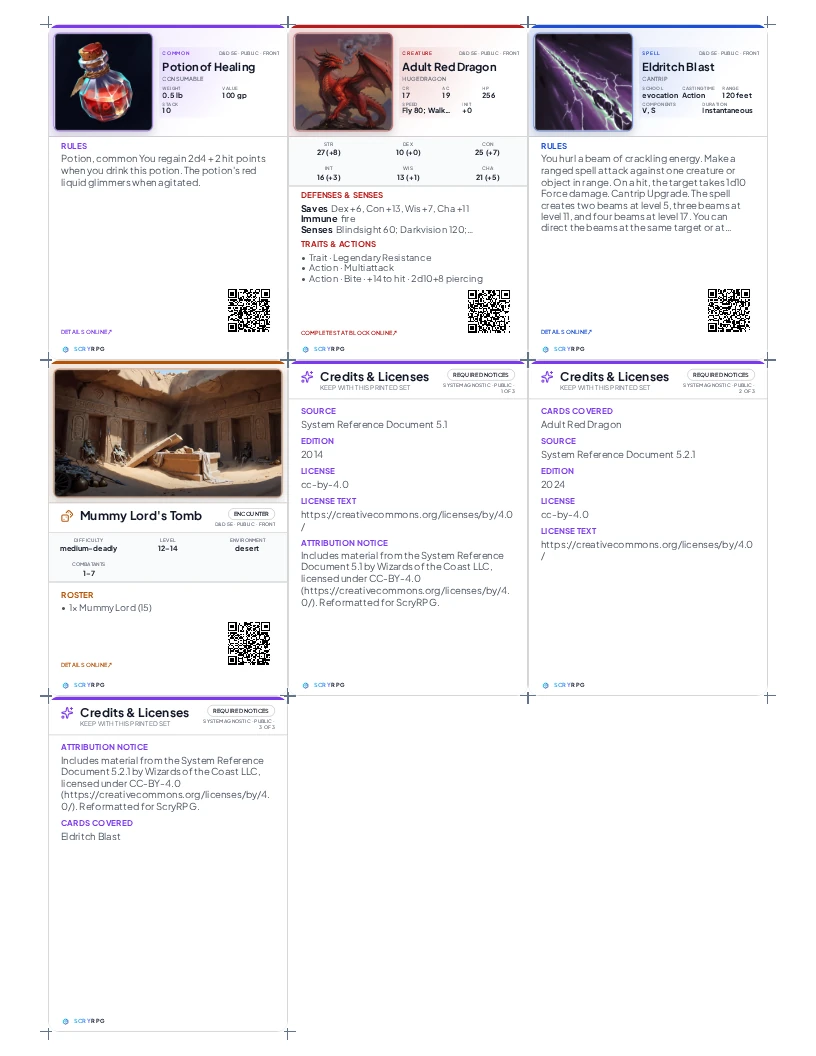
The sheet preview shows the same card order, backs, crop marks, and Credits & Licenses companions that move into print or PDF output.
Use Long edge or Short edge to match the printer’s actual duplex flip. ScryRPG mirrors/rotates backs for the selected mode, but feed direction, non-printable margins, registration drift, paper thickness, and manual reinsertion still vary by printer.
When a selected set needs printed source or license notices, ScryRPG adds one or more Credits & Licenses cards at the end of the set. Browser print and generated PDF also add a complete attribution/source appendix after the card sheets whenever the selected cards contain meaningful provenance, even if that provenance did not require a physical credits card. The Studio page count is labelled card sheets because later full-page appendix pages are additional. Application navigation, controls, preview badges, and floating widgets are hidden in print media.
QR codes that respect access
Card Studio uses compact ScryRPG links instead of printing raw marketplace or inventory IDs. The link locates content but does not grant access:
- a public destination still has to be public when scanned;
- protected destinations ask the viewer to sign in, then recheck account, party, GM, moderation, archive, and target visibility rules;
- a moderation-held destination is unavailable for every link audience, including to its creator, until it is approved;
- revoked, deleted, unavailable, and unauthorized destinations use the same unavailable result.
Before output, Card Studio checks every selected QR. When you are signed in, ScryRPG can replace an expired link with a new authorized one. A signed-out expired link, service outage, or failed check blocks output until you sign in, retry, or turn QR off. ScryRPG never substitutes an unchecked raw content URL.
A public card showcase can point to the card’s normal public ScryRPG page. Protected cards use a short access-checked link. In either case, the QR appears on the first information face so it can take an authorized viewer from the quick table reference to the complete living record.
Some inventory snapshots, deployed-content snapshots, and inline encounter creatures do not have an independently safe living page. QR stays unavailable for those cards by design and cannot be forced on; print them without QR or add a source card that has its own safe destination.
An NPC handout and its mechanical reference lead to the same living lore NPC. The direct flow uses the same protected link for both cards. When someone opens it, ScryRPG checks that person’s current party access and shows the lore page according to the ordinary role and visibility rules. The QR does not make a hidden NPC public or grant access to someone outside the party.
The physical QR target is a 14 mm black-on-white code with ECC M and a four-module quiet zone. Preflight also enforces minimum print density after calibration scaling.
QR engineering contract, not scan certification
Automated checks can verify the encoded URL, QR settings, raster density, and digital decoding. They cannot prove a real phone will scan ink on your paper under table lighting. Test the generated file and a physical proof with the devices your group uses.
If access is later revoked, the QR destination will deny access. A printed card or downloaded file is a durable copy once created, however; ScryRPG cannot erase paper or bytes someone received.
PDF, PNG, and ZIP exports
Generated PDF
Click PDF for a paginated client-generated file. It uses the selected Letter/A4 paper, card size, duplex mapping, crop marks, and calibration, and captures card faces at 300 DPI.
When printed notices are needed, the normal card sheets include the grouped Credits & Licenses cards at the end of the set. The PDF adds a deduplicated Attribution & source notices appendix after the card sheets whenever the selected cards contain meaningful provenance. The browser shapes CJK, Arabic/RTL, emoji, and mixed-script text, then embeds each appendix page as a raster image. This preserves visible text that the PDF library’s built-in Latin fonts cannot represent, but appendix text is not searchable/selectable and exact fallback glyphs depend on fonts installed on your device.
You can also choose Save as PDF from the browser print dialog. Use the dedicated PDF button when you want ScryRPG’s generated, measured file.
PNG profiles
| Profile | Pixels | Intended use |
|---|---|---|
| Poker trim · 300 DPI | 750 × 1050 | Exact Poker trim |
| Large reference trim · 300 DPI | 1200 × 1500 | Exact Large trim |
| MakePlayingCards bleed · 300 DPI | 822 × 1122 | Poker canvas with edge-extended bleed |
| The Game Crafter bleed · 300 DPI | 825 × 1125 | Poker canvas with edge-extended bleed |
Vendor bleed extends edge pixels; it does not stretch the trim artwork, text, or QR. These profile names describe implemented pixel dimensions, not proof that a vendor has accepted the file or that a manufactured order has passed production review. Recheck the vendor’s current template before ordering and validate a small physical order before making compatibility claims.
ZIP packages
Click ZIP for every unique selected information or decorative face once. Copy quantity is recorded in manifest.json instead of duplicating identical files. The package also includes:
- ordered, collision-safe PNG filenames;
- profile and deck metadata;
- content type and stable card identity, captured-at time, face role/count, and an eligible ScryRPG destination;
- per-face SHA-256 checksums;
- structured creator, origin, source, edition, license, attribution, artist, and AI-image-model fields;
README.txtexplaining quantities and access behavior;attribution/ATTRIBUTION.mdwith full human-readable notices.
If a Card Studio per-card download needs a source or license companion, ScryRPG downloads a ZIP containing the requested face or faces plus the Credits & Licenses cards for only that entry. A one-information-face showcase downloads as a ZIP with its matching ScryRPG back. When the entry needs a printed notice, the ZIP also includes its focused credit fronts and a branded back for each credit card. A one-face selection in Card Studio can still download as one PNG when it needs no printed notice; fixed Table Reference showcases package the face with its back.
Attribution and content provenance
Ordinary game-reference faces stay clear of repeated creator, source, edition, license, and art-credit lines. When a set needs a printed notice, ScryRPG groups cards with the exact same audience/party, source, edition, license, attribution text, and image artist onto one or more Credits & Licenses cards at the end. The stored legal wording is carried exactly rather than normalized or rewritten. Public and protected titles never share a companion. Changed legal/source wording stays separate, while revisions with the same printable notice can share one companion. Long text, URLs, and Unicode continue onto another credit card instead of being cut off. Each credit card receives the selected standard or authorized party back.
CC0, public-domain, and similar reviewed dedication/waiver content does not require an attribution sentence merely because that license label is present. An explicit publisher notice or image-artist credit can still create a companion card. CC BY 4.0, ORC, and DSCL are reviewed attribution-bearing policies. Any other declared license fails closed until its redistribution terms are reviewed and registered; a reviewed attribution-bearing license without its exact stored notice also blocks output.
Browser print and generated PDF keep a second, complete appendix. ZIP keeps the printable credit cards, structured provenance in its manifest, and attribution/ATTRIBUTION.md. That extra record can include creator, human/AI/system origin, source book, edition, license, full attribution, image artist, and AI image model even when those details did not need their own physical credit card.
Repeated copies, continuation faces, and decorative backs do not duplicate the full notice. A revised card with changed legal/source details remains a separate appendix and ZIP record instead of being merged into the older notice.
Current boundaries
Card Studio is designed to turn supported ScryRPG content into consistent cards, not to replace a freeform graphic-design application. Today:
- there is no arbitrary card-front or layout editor;
- characters, shops, loot tables, collections, and inventory containers do not become physical card types; their supported contents contribute cards instead;
- non-NPC lore does not have a printable card type;
- there is no user-facing Print this session workflow yet;
- a complete encounter set does not infer referenced spells or abilities as separate cards;
- Full Rules preserves the authorized structured source but cannot invent fields the source does not contain;
- saved decks are snapshots and do not refresh themselves after a source edit;
- output is created in the browser as a foreground job, not by a background export service;
- named vendor profiles are implemented sizes, not vendor certification;
- no printer, paper, browser, phone, or card service is guaranteed to produce the same physical result without a proof.
Troubleshooting
| What you see | What to do |
|---|---|
| Print, PDF, or ZIP is disabled | Open Preflight, include at least one entry, resolve every red blocker, then review and acknowledge warnings |
| Table Reference says content was shortened or omitted | This is informational. Scan the QR or switch that entry to Full Rules |
| A QR is missing or unavailable | Sign in so ScryRPG can create or refresh an authorized link, retry after an outage, or turn QR off for that entry |
| QR cannot be enabled for a snapshot | That card has no independently safe living destination. Use it without QR or add a source card with its own page |
| The deck exceeds 100 rendered faces | Exclude entries, lower copies, switch unnecessary Full Rules entries to Table Reference, or split the deck into separate output jobs |
| Calibration moves cards off the page | Reset X, Y, and Scale, verify the selected paper/card size, then create a new calibration proof |
| Party back is unavailable | Patron is required, the party GM must upload an image under Party Settings > Card Printing, and you must still have access to that party |
| Party back disappeared after a downgrade | The choice is dormant rather than deleted. Output uses Auto until Patron returns, or the GM can clear the image in Party Settings |
| A download is a ZIP instead of one PNG | A matching back or required Credits & Licenses companion needs to travel with that face |
| Full Rules is missing from a showcase | Showcases are Table Reference previews. Choose Add to deck, then change the entry inside Card Studio |
| An NPC has no Rules reference | No usable, independently authorized stat source is attached. Print the handout only |
| A saved card shows older mechanics | Re-add the source to refresh its snapshot, then check the copy count because a compatible re-add also increases quantity |
| Protected cards disappeared after logout or an account switch | Sign back into the authorized account and reopen or re-add them. Shared-browser quarantine is intentional |
| A scanned QR opens an unavailable page | Sign in with an authorized account. The content may now be private, moderated, archived, deleted, or outside your party access |
| Fronts and backs do not align | Print at Actual size, disable headers and footers, recalibrate, and try the other duplex edge mode |
| Required art or a back fails to load | Retry after the asset loads. Optional missing front art uses the no-art design; required back failures must be resolved before output |
If a problem remains after a fresh preflight and proof, contact [email protected] or bring the output settings and a screenshot to the ScryRPG Discord.
Common questions
Do I need an account?
You can work locally with public cards while signed out. A public showcase can use its normal public ScryRPG page for the QR, or a verified short link when no safe direct page is available. Card Studio needs an existing verified link while you are signed out; otherwise turn QR off or sign in to create or refresh one. Sign in to use protected content, add through authenticated pickers, and save/reopen decks across devices.
Which content types are supported?
Items, creatures, lore-NPC handouts and mechanical references, spells/abilities, and encounter overviews are physical card types. Shops, loot tables, collections, characters, and inventories contribute their authorized item cards.
Can I print double-sided cards?
Yes. Choose Long edge or Short edge, download the calibration sheet, and prove the flip/registration on plain paper before using cardstock.
What happens to long stat blocks or rules?
Table reference is deliberately one useful information face and uses a coordinated ScryRPG back. When content is long, it shortens or omits only the configured secondary material and discloses that decision; scan the QR or choose Full rules for everything. Full rules creates deterministic continuation faces and never silently clamps the complete rules to fit one card.
Can I restore an excluded card?
Yes. Excluded entries stay in Deck contents. Use the include control to restore them.
Is my deck saved?
The entries and limited QR/back workspace preferences persist in this browser and are account-scoped after sign-in; the other output controls reset after a local-only reload. Signed-in users can also save private card data with compatible output settings and reopen the deck on another device. Free includes 1 reusable saved deck, Player 10, and GM/Patron unlimited.
Do I need Patron to print custom content?
No. Content cards, complete-set composition, QR, preflight, branded backs, browser print, PDF, PNG, and ZIP are available on every plan. Patron adds only the managed custom party-back image.
How many cards can I export at once?
Definitions hold up to 500 entries with 1 to 99 copies each, but one synchronous job is capped at 100 rendered faces. Split a large deck into multiple jobs.
Why did ScryRPG add a Credits & Licenses card?
It keeps repeated legal and source text off the game-reference faces while preserving the notices that need to travel with the printed set. Matching notices are grouped, and the PDF/ZIP records keep the full provenance too.
Are the QR codes guaranteed to scan?
No. The digital contract is tested, but real scanning depends on printer, ink, paper, finish, phone, lighting, angle, distance, and wear. Decode the file and test a physical proof.
Are vendor PNGs guaranteed to pass production?
No. They implement named 300-DPI pixel/bleed profiles. Only the vendor’s current preflight and a physical order can establish acceptance.
Ready to build a deck?
Add game content as you prepare, run preflight, calibrate one proof sheet, and bring the finished deck to your table.
What’s next?
- Printable RPG Cards overview: See how physical cards fit into the campaign
- Marketplace: Find community content worth turning into cards
- Encounters Guide: Build the overview, roster, and attached-loot source for a complete set
- Lore Guide: Prepare an NPC handout and optional separate mechanical reference
- Characters Guide: Print authorized item snapshots from a character inventory
- Shops Guide: Add a shop’s authorized item cards
- Loot Guide: Build treasure tables, then print their rewards
- Inventory Guide: Manage item snapshots that can enter a deck
- Subscription Guide: Compare saved-deck capacity and Patron custom backs
- Item Creation: Design custom items with artwork and provenance